Home › Skins
Skins change how your Minecraft character looks — from heroes and animals to zombies, robots and your own custom design. This page collects the best skins for Minecraft on Android and shows how to use them.
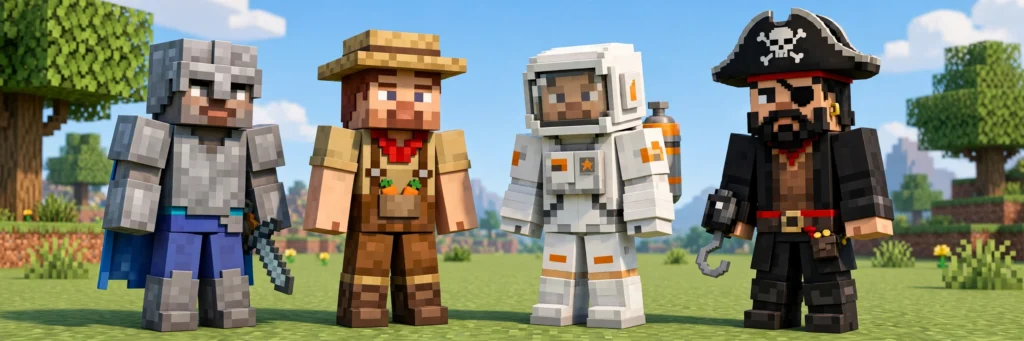
What is a Minecraft skin?
A skin is the texture that covers your character model. Everyone starts with the default Steve or Alex look, but a skin can turn you into a knight, a creeper, a superhero or anything else you can imagine. Other players in multiplayer see your skin too.
How to use a skin on Android
- Download a skin file (PNG) from a skin guide or the Marketplace.
- In Minecraft, tap your profile icon on the main screen.
- Go to Edit Character > Skins > Owned.
- Tap Import and choose the skin file you downloaded.
- Select the skin and start the game — your new look is ready.
Popular skin styles
- Hero skins — knights, warriors and superheroes.
- Animal skins — cats, dogs, pandas and foxes.
- Monster skins — creepers, zombies, endermen and skeletons.
- Funny skins — bananas, hot dogs and meme characters.
- Girl and boy skins — casual, cool and stylish characters.
Skin ideas to try first
Start with a look that fits how you play: a knight or a warrior for survival, a builder with a tool belt for creative builds, an animal skin for a fun world, or a creeper, zombie or Enderman for a spooky one. Girl and boy skins cover casual and stylish looks, and funny skins — bananas, hot dogs and meme characters — work best on a relaxed world with friends. Skin packs change many looks at once, while a single skin file changes just one; both import the same way, with the steps above.
Until then, try out the game itself — download Minecraft 26.3 and explore the default skins in the character editor.
Latest Skins posts
The skin ideas above and the step-by-step above are the skin guides for now — every guide here is tested on the latest version before it is published.